Speech to Text turns microphone speech into text you can use in Companion.
Make sure to install a recognition model from the settings.
¶ Interface
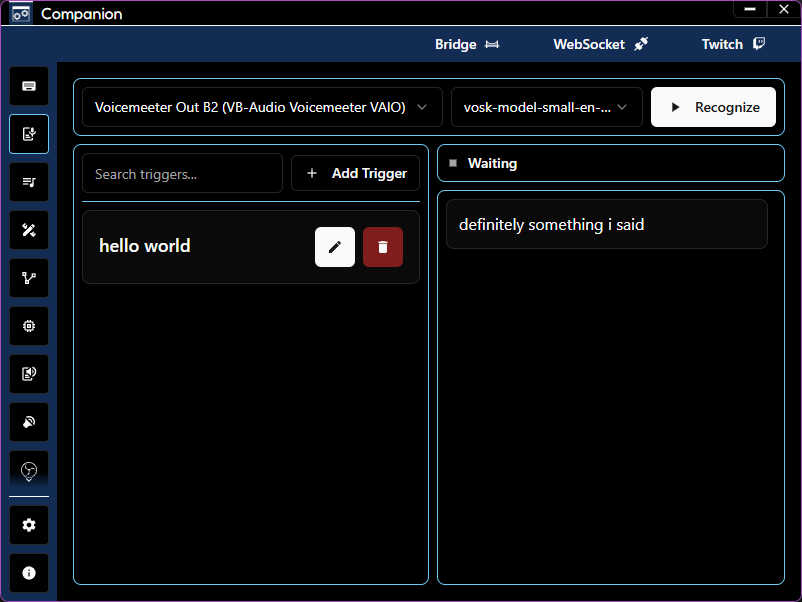
¶ View controls
-
Choose
Audio input device. -
Choose
Select Installed Model. -
Start with
Recognize. -
Stop with
Stop. -
The status line shows
Waiting,Loading Model..., orListening.
¶ Trigger words
-
Use
Search triggers...to filter the list. -
Use
Add Triggerto add a trigger word. -
Edit a trigger with the pencil button.
-
Delete a trigger with the trash button.
-
Last Trigger Detected:shows the most recent match.
¶ Live transcript
- Final results appear as cards.
- Partial results appear as a dashed italic card.
- If recognition is not active, Companion shows
Please start recognition to see live text here.
¶ Graph nodes
STT ControlSTT Clear ResultsSTT StatusSTT ResultSTT Last Trigger
¶ Related settings
In Settings:
STTtab: setSTT Engineand openManage ModelsInputtab: useMicrophone trigger levelif you need microphone threshold events
¶ Graph trigger names
Use these friendly trigger names in Edit Graph Triggers:
STT Partial ResultSTT Final ResultSTT StatusSTT Trigger
¶ Troubleshooting
- If
Recognizeis disabled, pick both a device and an installed model. - If status stays on
Loading Model..., verify model availability inManage Models. - If no triggers fire, confirm your graph has STT trigger types configured.